Simple Text Changes on Member's Page
A step by step guide demonstrating how to make simple text edits on a website page.
In your browser, go to the page you'd like to update
- You will reference this page throughout the process.
Searching For A Specific Page
- Open a new tab in your browser window.
- Log into your Magento admin panel.
- Select CMS > Pages.
- You can now search for the page by pasting it's name into the field called URL Key.
- How do you find the URL key?
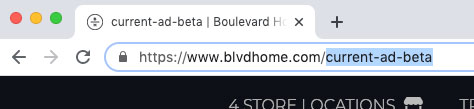
- Go back to the page in the tab you first opened at the beginning of the tutorial.
- Copy the page name located in the address field. Click Image to Zoom
- Go back to your Admin panel and paste the name into the URL key field. Click Image to Zoom
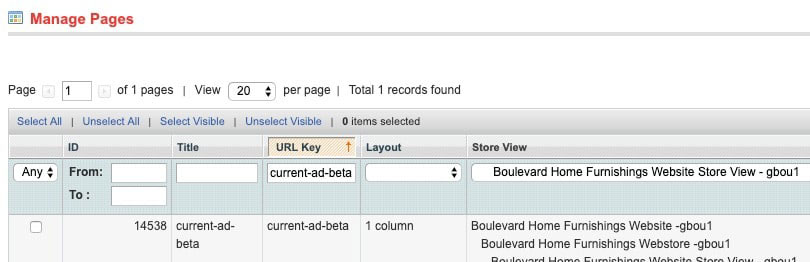
- In the Store View column, click the dropdown menu to find your store.
- Two ways to select the store name:
- Start typing the name of the store, it will automatically select it, click enter.
- Scroll to select the store manually, click to select.
- When results appear, you will see the page to edit.
- Click on this result.
Editing Your Page
- On the left side of your screen you'll see a menu.
- Select Content.
- You will now see you pages. HTML code.
- Scroll down until you find the paragraphs you will need to update.
- Note that this text will usually be located inside of p tags.
- Learn more about paragraph tags (p)
- Once you locate it you can now update it with the new text.
- Copy the first paragraph located in your source document on your computer.
- Go back to the Content area of your webpage, and select the paragraph you'd like to update.
- Paste the new text into this area.
- Remember to always add content between the p tags, so it will be formatted according to the pages style.
- Go to the top right of your content window, hit the button named Save and Continue edit.
- Once the page reloads, it is finished saving.
Checking Your Work
- To make sure updates had been completed, go back to the page on your website.
- Click the refresh icon in your browser window.
- You should now see that your text has successfully been updated.
- If everything is looks correct, you can close the updated CMS page in your admin dashboard.