How to Replace A Promo Banner
A step by step guide demonstrating how to update the promotional banner images and pdf file links within the provided template page on your website.
In your browser, go to the page you'd like to update
- You will reference this page throughout the process.
Prepping your files for upload
- Before you can upload files to your website, you must prep them for upload.
- Save two versions of your file: 1 PDF and 1 JPEG (JPG).
- Each file must be under 20MB in size.
- To make the process simpler, use similar file names for both.
Searching For A Specific Page
- Open a new tab in your browser window.
- Log into your Magento admin panel.
- Select CMS > Pages.
- You can now search for the page by pasting it's name into the field called URL Key.
- How do you find the URL key?
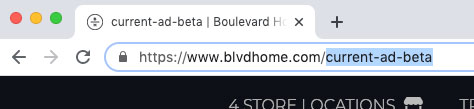
- Go back to the page in the tab you first opened at the beginning of the tutorial.
- Copy the page name located in the address field. Click Image to Zoom
- Go back to your Admin panel and paste the name into the URL key field. Click Image to Zoom
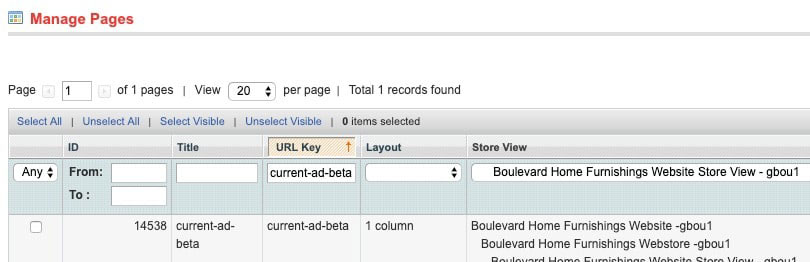
- In the Store View column, click the dropdown menu to find your store.
- Two ways to select the store name:
- Start typing the name of the store, it will automatically select it, click enter.
- Scroll to select the store manually, click to select.
- When results appear, you will see the page to edit.
- Click on this result.
Editing Your Page / Uploading Files
- On the left side of your screen you'll see a menu.
- Select Content.
- You will now see you pages. HTML code.
- Upload your files into the media folder.
- Above the Content area, select the Insert Image button.
- Please make sure to upload your files to the folder dedicated to your website.
- Select files from your computer folder, by clicking on the Browse File button.
- Click the Open button to add them.
- When both files are listed, click the Upload Files button.
- The PDF file will prompt an 'unsupported file format' error. That’s ok. It will still be uploaded.
- Go back to the content area, by closing the media upload window.
- You can now paste your file names into the HTML code.
- Scroll down until you find the snippet of code where the new promo banner needs to be added.
- Once you locate it, go back to the folder on your computer, copy the file name and paste in place of the placeholder image name, located in the snippet.
- Remember to keep the file types as they are shown.
- Do this for the jpeg and the pdf.
- Go to the top right of your content window, hit the button named Save and Continue edit.
- Once the page reloads, it is finished saving.
Checking Your Work
- To make sure updates had been completed, go back to the page on your website.
- Click the refresh icon in your browser window.
- You should now see that your banner has been successfully replaced.
- Check if your links are working by clicking the download button and the image of the banner. They should open the banner file on a new page (you'll see a new browser tab open up).
- If everything is working correctly, you can now close the updated page in your admin dashboard.